Screen Capture
Dusky takes screenshots of interview questions so the AI can analyze them. The capture is invisible — it never appears in screen share or recordings.
How to capture
Section titled “How to capture”Press Cmd/Ctrl+H to take a screenshot.
Dusky captures whatever is currently on your primary display. You can queue up to 5 screenshots — older captures are automatically discarded to save memory.
Capture + Solve in one step
Section titled “Capture + Solve in one step”Press Cmd/Ctrl+Enter to screenshot and immediately send the image to AI for analysis. This is the fastest workflow when a coding question appears on screen.
Why it is invisible
Section titled “Why it is invisible”Dusky registers its window as screen-share-excluded at the operating system level. On macOS, this uses the system content protection API. On Windows, Dusky uses the display affinity API to exclude itself from capture. Video conferencing apps like Zoom, Google Meet, and Microsoft Teams skip excluded windows when sharing your screen. Your interviewer never sees Dusky.
The app window is also:
- Hidden from the Dock (macOS) or Taskbar (Windows) in stealth mode
- Hidden from the app switcher (Cmd+Tab / Alt+Tab) in stealth mode
- Protected from screen recordings via content protection
For more on invisibility, see Stealth Mode.
Where screenshots are stored
Section titled “Where screenshots are stored”Screenshots are saved as PNG files in Dusky’s local application data folder. Up to 5 screenshots are kept at a time — when you capture a sixth, the oldest is automatically deleted from disk.
Viewing and deleting screenshots
Section titled “Viewing and deleting screenshots”There are two ways to reach your captures. The camera icon in the vertical toolbar shows how many screenshots you currently have:
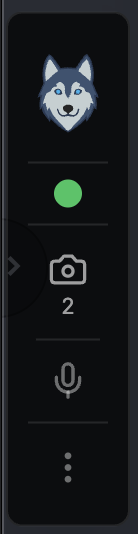
- When the count is zero, clicking the camera icon takes a screenshot.
- When you have one or more, clicking it opens the Screenshots gallery.
Your captures also appear as small thumbnails at the top-left of the panel — clicking a thumbnail opens the same gallery.

In the Screenshots gallery you can move between captures with the ‹ › arrows or the thumbnail strip, and delete the current one with the 🗑 trash button.
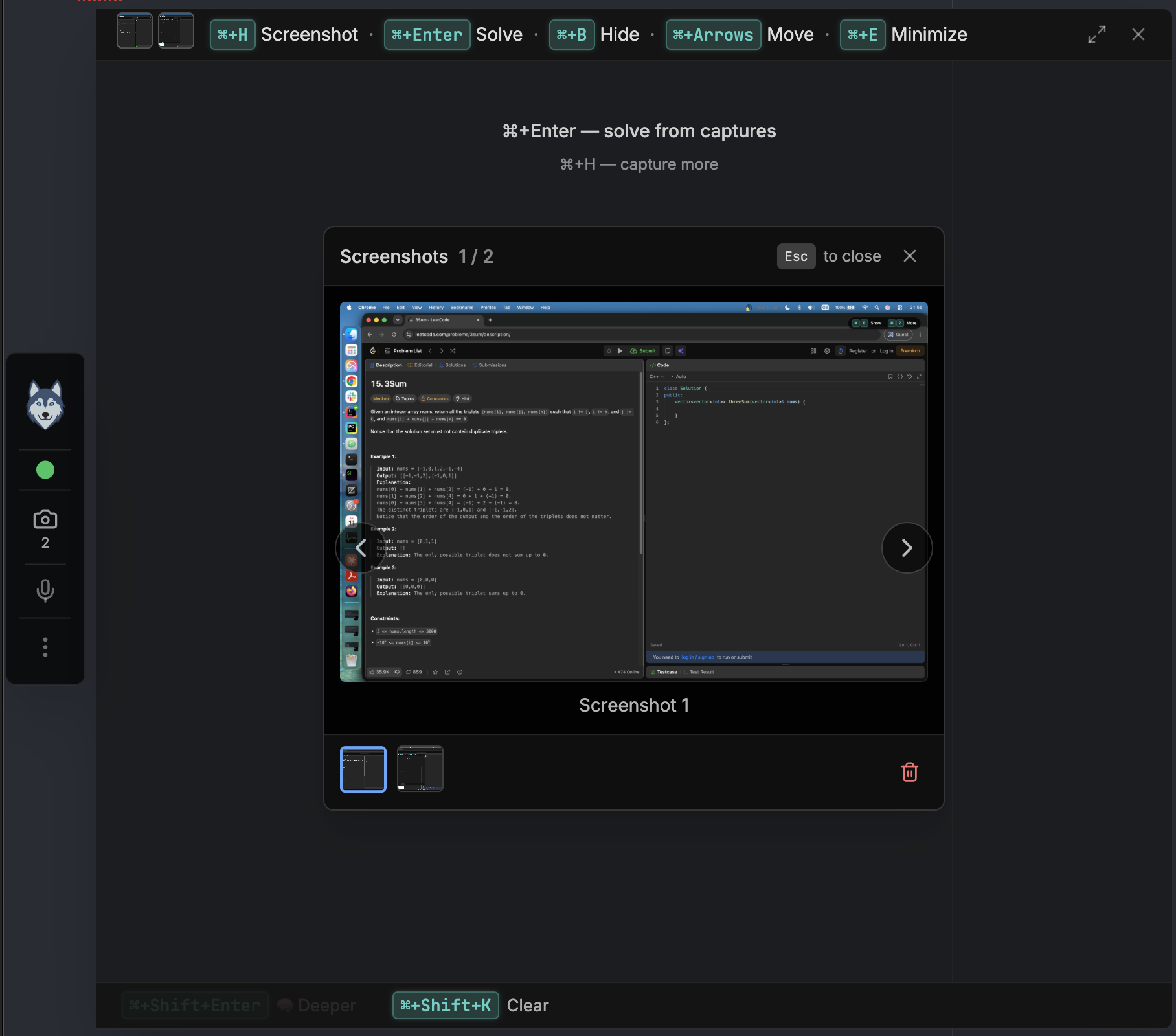
To clear all captures at once, press Cmd/Ctrl+Shift+K. To wipe all app data, use Settings.
Screenshots persist across sessions so Dusky can restore your context if you quit and relaunch during an interview. If Dusky recovers from a crash, it asks whether to restore your previous screenshots and problem context before bringing anything back — nothing is re-applied without your say-so.
When you press Cmd/Ctrl+Enter to solve, the screenshot image data is sent to Dusky’s AI backend for analysis. The backend processes the image and returns a response — it does not store your screenshots permanently. See the Data Handling page for full details on how your data is processed.