
Stealth Mode
Stealth mode is Dusky’s core invisibility feature. When active, the app is hidden from screen sharing, the taskbar, the app switcher, and screen recordings.
What stealth mode does
Section titled “What stealth mode does”| Feature | Behavior |
|---|---|
| Screen share | Dusky window is excluded from Zoom, Meet, Teams, and other platforms |
| Dock / Taskbar | App icon is hidden from the macOS Dock and Windows Taskbar |
| App switcher | Hidden from Cmd+Tab (macOS) and Alt+Tab (Windows) |
| Screen recording | Window content is protected and appears blank in recordings |
| Click-through | Non-interactive areas let mouse clicks pass through to the app below |
Toggle visibility
Section titled “Toggle visibility”Press Cmd/Ctrl+B to show or hide the Dusky window. Even when visible to you, Dusky remains invisible to screen share. Use Cmd/Ctrl+B to quickly glance at a response, then hide the window again.
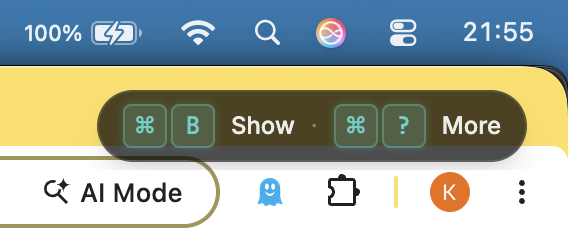
When the window is hidden, a small pill appears in the top-right corner of your screen reading ⌘B Show · ⌘? More, reminding you how to bring Dusky back. The pill is itself invisible to screen share and recordings.
How it works
Section titled “How it works”Dusky registers as a screen-share-excluded window at the operating system level. On macOS, this uses the system content protection API. On Windows, Dusky uses the display affinity API to exclude itself from screen capture. Video conferencing apps respect this flag and skip the window when sharing your screen.
Additionally, Dusky enables content protection so that even if a screen recording tool captures the window frame, the contents appear blank.
Tested platforms
Section titled “Tested platforms”Stealth mode works with:
- Zoom
- Google Meet
- Microsoft Teams
- Webex
- Slack Huddles
- Most browser-based conferencing tools
Testing invisibility
Section titled “Testing invisibility”During onboarding, Dusky walks you through an invisibility test:
- Press Cmd/Ctrl+B to hide the window.
- Start or join a screen share in your conferencing app.
- Confirm that Dusky does not appear in the shared view.
- Press Cmd/Ctrl+B to bring it back.
You can repeat this test anytime before an interview for peace of mind.
Always on — no toggle to forget
Section titled “Always on — no toggle to forget”Invisibility is not a mode you have to remember to switch on. The interview overlay is screen-share-excluded and content-protected by default, every session. There is no stealth on/off switch to leave in the wrong position before a call.
Two windows: overlay and dashboard
Section titled “Two windows: overlay and dashboard”Dusky runs as two windows with different jobs:
- The overlay is the invisible interview companion — frameless, always on top, and excluded from screen capture. This is what you use during a call.
- The dashboard is a normal window used for signing in, onboarding, granting permissions, running the invisibility test, and managing settings and billing. It behaves like any other app window.
During an active interview session, the dashboard is also protected from screen capture; that protection lifts when the session is paused (for example, after your screen locks) so normal screenshots work again.